Projects Overview
Projects in HighFly help you organize and track work that spans across teams. They provide a high-level view of related issues, progress tracking, and activity history.
What Are Projects?
A project is a container for grouping related issues together, regardless of which team those issues belong to. This is particularly useful for:
- Cross-functional initiatives that involve multiple teams (e.g., a product launch involving Engineering, Design, and Marketing)
- Tracking milestones with a clear start and end goal
- Organizing sprints or releases that bundle multiple features together
- Client projects where you need to track all work for a specific client across teams
Project Statuses
Every project has a status that reflects its current state:
| Status | Description |
|---|---|
| Planning | Project is being scoped and planned, not yet started |
| Active | Work is actively being done on this project |
| On Hold | Project is temporarily paused |
| Completed | All work has been finished |
| Archived | Project is closed and no longer visible in default views |
You can change a project's status at any time from the project detail page sidebar.
Projects, Teams, and Issues
Understanding how projects relate to teams and issues is key to using them effectively:
Organization
├── Team A (Engineering)
│   ├── Issue ENG-1 ──────┐
│   └── Issue ENG-2 ──────┤
├── Team B (Design)       │
│   └── Issue DES-1 ──────┼──▶ Project: "Q1 Product Launch"
└── Team C (Marketing)    │
    └── Issue MKT-1 ──────┘
Key relationships:
- A project must have at least one team linked to it
- A project can include issues from any of its linked teams
- Issues from different teams appear together in the project's board or list view
- When you create an issue from a project page, it's automatically linked to that project

Progress Tracking
Projects automatically track progress based on the issues linked to them:
- Completed Issues: Number of issues with "Completed" status
- Total Issues: Total number of issues in the project
- Percentage: Visual progress indicator
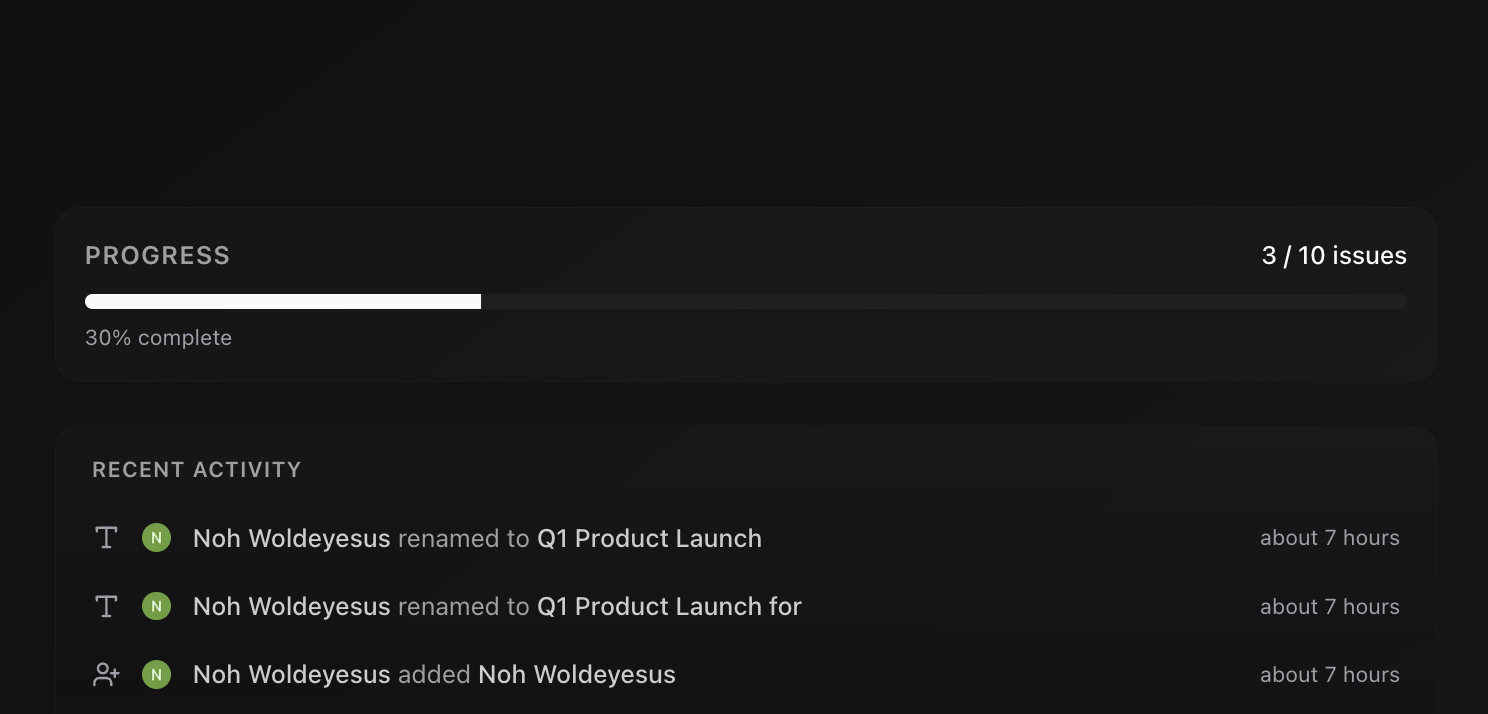
Progress updates in real-time as you complete issues within the project.
Navigating Projects
Projects List
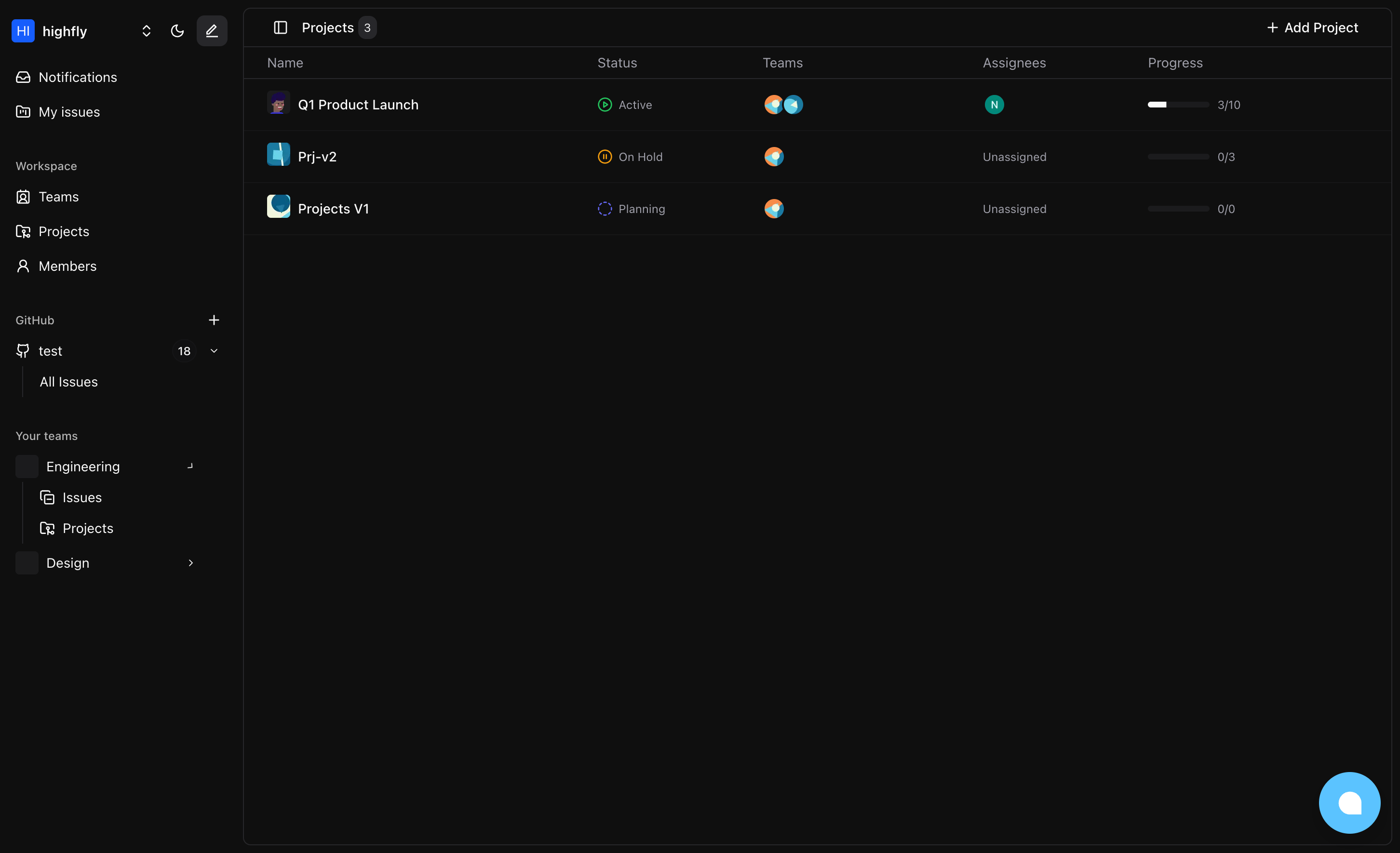
Access all your organization's projects from the sidebar by clicking Projects. The list shows:
- Project name and icon
- Current status
- Linked teams
- Assigned members
- Progress percentage
Project Detail Page
Click any project to open its detail page, which includes:
- Main content area: Editable title, description, and progress summary
- Right sidebar: Status selector, assignees, teams, and project icon customization
- Recent activity: Latest changes made to the project
Project Issues Page
From the project header, click Board or List to view all issues in the project:
- Board view: Kanban-style columns organized by status
- List view: Compact list grouped by status with collapsible sections
Next Steps
- Creating & Managing Projects - Learn how to create and configure projects
- Issues in Projects - Work with issues within projects
- Activity Tracking - Monitor changes and history