Project Activity Tracking
HighFly automatically tracks all changes made to projects, providing a complete audit trail of who changed what and when.
Recent Activity
On every project detail page, you'll find a Recent Activity section that shows the latest changes:
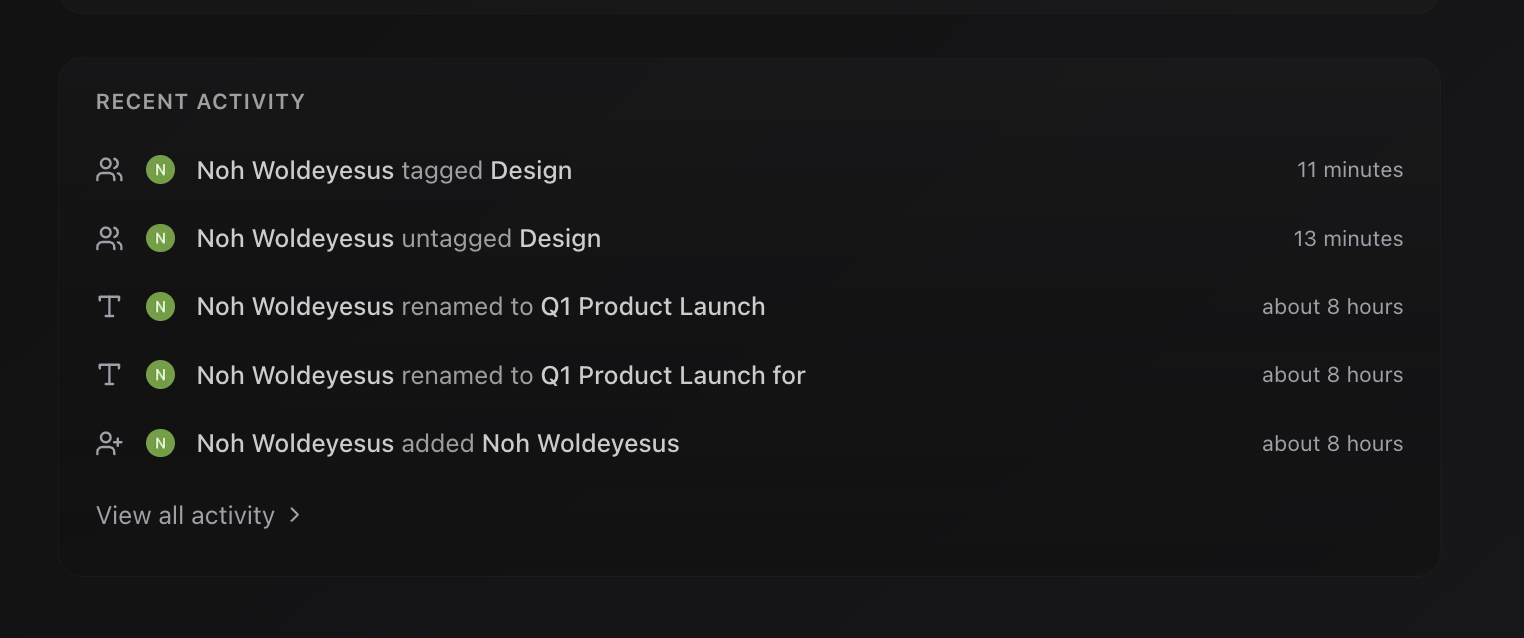
This section displays:
- The most recent activity items
- Who made each change
- When the change occurred
- A brief description of what changed
Click See full activity to view the complete history.
Full Activity Page
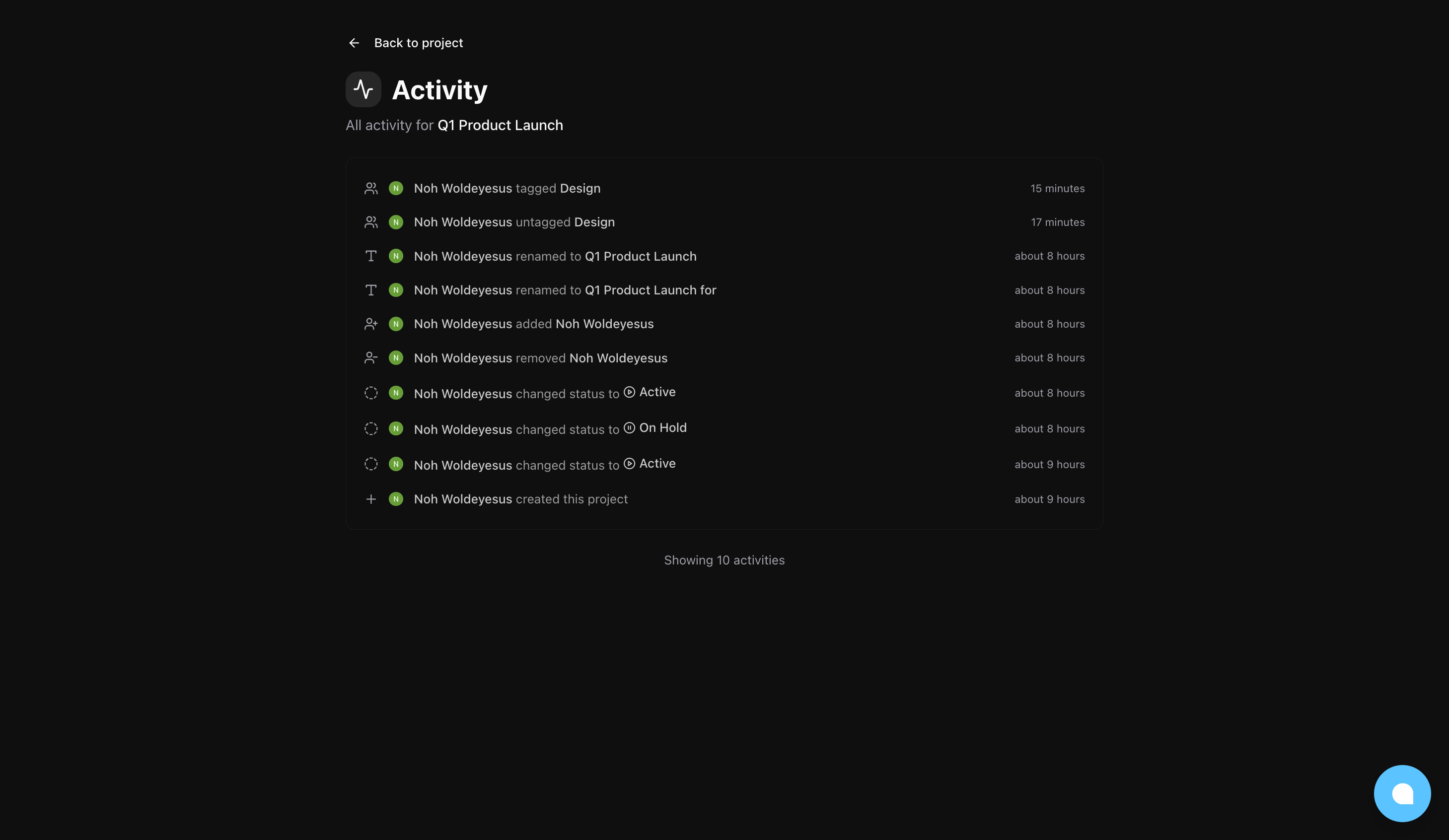
The full activity page shows the complete history of all changes made to a project:
Accessing Full Activity
- Open any project
- Scroll to the Recent Activity section
- Click See full activity
Or navigate directly to: /your-org/projects/project-slug/activity
Activity List
The full activity page displays all recorded changes in reverse chronological order (newest first). Each activity item shows:
- Icon: Visual indicator of the activity type
- Description: What changed and any relevant details
- Timestamp: When the change occurred (relative time, e.g., "2 hours ago")
Activity Types
HighFly tracks the following project activities:
Project Created
Logged when a new project is created.
Details shown:
- Project title
- Who created it
Status Changed
Logged when the project status is updated.
Details shown:
- Previous status
- New status
- Who made the change
Title Updated
Logged when the project title is changed.
Details shown:
- Previous title
- New title
- Who made the change
Description Updated
Logged when the project description is modified.
Details shown:
- Who made the change
- Timestamp
Assignee Added
Logged when a member is assigned to the project.
Details shown:
- Name of the added assignee
- Who added them
Assignee Removed
Logged when a member is removed from the project.
Details shown:
- Name of the removed assignee
- Who removed them
Team Added
Logged when a team is linked to the project.
Details shown:
- Name of the added team
- Who added it
Team Removed
Logged when a team is unlinked from the project.
Details shown:
- Name of the removed team
- Who removed it
Icon Updated
Logged when the project icon is customized.
Details shown:
- Who changed the icon
- Timestamp
Activity Details
Each activity item includes:
| Field | Description |
|---|---|
| Type | The kind of change that occurred |
| Actor | The user who made the change |
| Timestamp | When the change happened |
| Metadata | Additional context (varies by activity type) |
Using Activity for Auditing
The activity log is useful for:
Tracking Progress
- See when status changes occurred
- Identify bottlenecks or delays
- Understand the project timeline
Team Coordination
- Know who's been added or removed
- See which teams are involved
- Track responsibility changes
Accountability
- Every change is attributed to a user
- Complete history is preserved
- No changes are lost or hidden
Troubleshooting
- Identify when something changed
- Find out who made specific changes
- Revert changes if needed (by making opposite changes)
Activity vs. Issue Activity
Project activity and issue activity are separate:
| Project Activity | Issue Activity |
|---|---|
| Tracks project-level changes | Tracks individual issue changes |
| Assignees, teams, status | Status, priority, comments |
| Visible on project pages | Visible on issue pages |
| Includes project creation | Includes issue creation |
Changes to issues within a project (like status updates) are logged in the issue's activity, not the project's activity.
Privacy and Permissions
- All organization members can view project activity
- Activity is tied to user accounts
- The system tracks who made changes, not just what changed
- Activity logs cannot be edited or deleted
Related Documentation
- Projects Overview - Understanding projects in HighFly
- Creating & Managing Projects - Project configuration options
- Issues in Projects - Working with project issues